CM

  • About
  • Blog
  • CV
  • For quite a while, I’ve been committed to using Apple’s ecosystem of apps like Notes, Calendar, and Mail. My thinking has always been that keeping everything in one place might pay off in the long run, especially with the potential development of a smarter Siri or some form of Apple Intelligence.

    Like many people I know, I have a problem when it comes to personal task management apps. I’ve tried everything—starting with Things 1.0 by Cultured Code– to the likes of Todoist, Trello, and several others—but Reminders was never something I could get myself to fully embrace.

    I recently read a couple of articles by Joan Westenberg and Rahul Chowdhury. They’re both great – I highly recommend everyone read them. But for me, the most important takeaway was: use as few lists as possible.

    If you’re familiar with productivity methods like Getting Things Done (GTD) or PARA, it’s easy to fall into the habit of creating intricate structures—folders for different areas, lists for projects, and tasks then scattered across multiple lists.

    Normally that would be fine, but that doesn’t quite work with how Apple Reminders is designed. The app just isn’t built for that level of complexity, and trying to force it can create more frustration than organization.

    Here’s what’s been working for me:

    1. Create one list for each major area of your life. This could be as simple as a “Work” list and a “Personal” list.

    2. Put all tasks related to that area into the respective list—don’t worry about breaking them down into further sub-lists or folders.

    3. Use tags to organize tasks. Tag tasks based on the area, project, subproject, team members – tag extensively, with abandon.

    4. Use Smart Lists to filter tasks based on tags. These lists are essentially “virtual” lists that automatically gather tasks with some set of criteria. This way, you can still view tasks related to a specific project or context without the need to manually organize them.

    Bonus Tip: Use the built in options for priority and flagging to highlight importance of tasks or a blocked status.

    For example, in my “Work” list, I’ll tag all tasks related to “Project A” with the same tag. Then, I create a Smart List that pulls every task with that tag into one place. This allows me to focus on Project A when needed, while keeping everything streamlined and in one place.

    It’s not a perfect system, and I’m sure there will be adjustments along the way, but this streamlined approach has been a major improvement over the more complicated setups I’d tried in the past.

    Now all I need is for Apple Intelligence to actually get more useful. I’ve been told it’s coming.

    2024-10-04
    apps, organization, productivity, technology, time-management
  • I thought I’d share the basics of our new at-home scanning workflow:

    • All lettermail is scanned via a ScanSnap ix16001 at the point-of-origin (basically as soon as it’s brought in)
    • The ScanSnap uploads to a ‘Scans’ folder in Dropbox2
    • The Scans folder syncs to an older Mac mini running a few utilities.
    • Hazel processes the files:
      • Renames them with a date in the format YYYY-MM-DD_HH-MM-SS
      • Runs OCR on them using OCRmyPDF
    • Keep it shot3 then reads the OCR and uses OpenAI’s API to:
      • Append 3 descriptive words to the filename
      • Append the addressee to the filename

    Then anyone in the household can grab the scanned file when they’re ready.

    I’ll eventually add some additional processing via Hazel to sort into folders, but that’s a future-Chris problem.

    1. I’ve been using ScanSnap products for over a decade now and they’re fantastic. My first was the 1300 – which I recently moved to my office, which prompted the purchase of the ix1600. So yes, I was using a single ScanSnap for over a decade. ↩︎
    2. This could really by any cloud service that’s supported. We still use Dropbox because it’s sync is still best-in-class and it’s handy for sharing random files with people. ↩︎
    3. Technically, Keep it shot is invoked via a Keyboard Maestro automation. Clunky, but it works. ↩︎

    2024-09-27
  • From Jodi Bruin, the king of utilities:

    Amnesia allows you to disable the monthly reminders for Screen Capture Access on an app by app basis.

    2024-09-23
  • “GAMEBABY is a phone case with built-in physical buttons that transforms your device into a retro gaming handheld.”

    2024-09-19
    Gaming, iPhone
  • I wouldn’t say that I’m a big baseball fan anymore, but I’ve wanted to understand the sport better for awhile now.

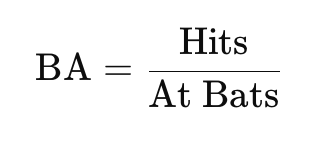
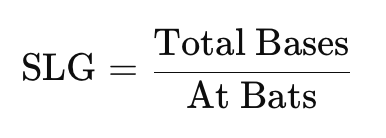
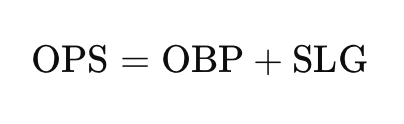
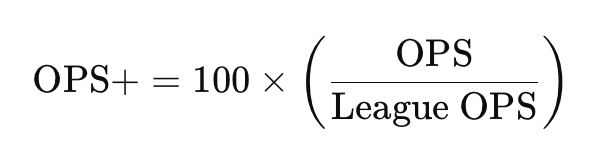
    Using the power of the internet, I compiled this short cheatsheet (with formulas!) to understand the player boxscore better.

    AB – At Bats

    At Bats count the number of times a player bats, excluding walks, sacrifices, and hit by pitch.

    R – Runs

    A run is scored when a player safely reaches home plate.

    H – Hits

    Hits count the number of times a player reaches at least first base on a successful hit.

    RBI – Runs Batted In

    Runs Batted In count how many runs a player causes to score with their hits or plays.

    BB – Base on Balls

    Base on Balls (AKA Walks) count the number of times a player reaches first base after four balls are pitched.

    SO or K – Strikeouts

    Strikeouts count the number of times a player accumulates three strikes during an at bat.

    AVG or BA – Batting Average

    Batting Average is the ratio of a player’s hits to their at bats.

    OBP – On-base Percentage

    On-base Percentage measures how often a player reaches base via hits, walks, or being hit by a pitch.

    SLG – Slugging

    Slugging Percentage measures the total bases a player earns per at bat.

    OPS – On-base Plus Slugging

    On-base Plus Slugging combines on-base percentage and slugging percentage to assess overall hitting performance.

    OPS+

    OPS+ adjusts OPS for league and park differences, with 100 being average.

      2024-06-22
    1. TIL: You can use VirtualHere to make any USB device accessible via your network.

      2024-06-12
    2. I’m big on Affinity as a suite of products and this acquisition (so far) seems really good.

      Huge 50% off sale on the software and all add-ons at the moment.

      2024-06-12
    3. I thought I knew how to use Keynote well, but this animation tutorial by Martin Gee is just something else.

      2024-06-11
    4. This collection of email sign-offs is *delightful*.

      2024-06-11
    5. Some folks have made a really good (iPhone only) phone call simulator for movies and TV.

      Top marks.

      https://www.threads.net/@lunu/post/C7-qDz3RX75

      2024-06-09
      film, iPhone
    6. TIL: You can mod the 2022 Apple TV to run it on USB-C power.

      Kit available from VDBX for $29 USD.

      2024-06-07
      apple
    7. If you’re keen on Apple Notes, but want a bit more of the functionality all the cool kids are talking about – backlinks, slash commands, for example – then ProNotes might be for you.

      Desktop only.

      2024-06-04
      apple, macintosh, writing
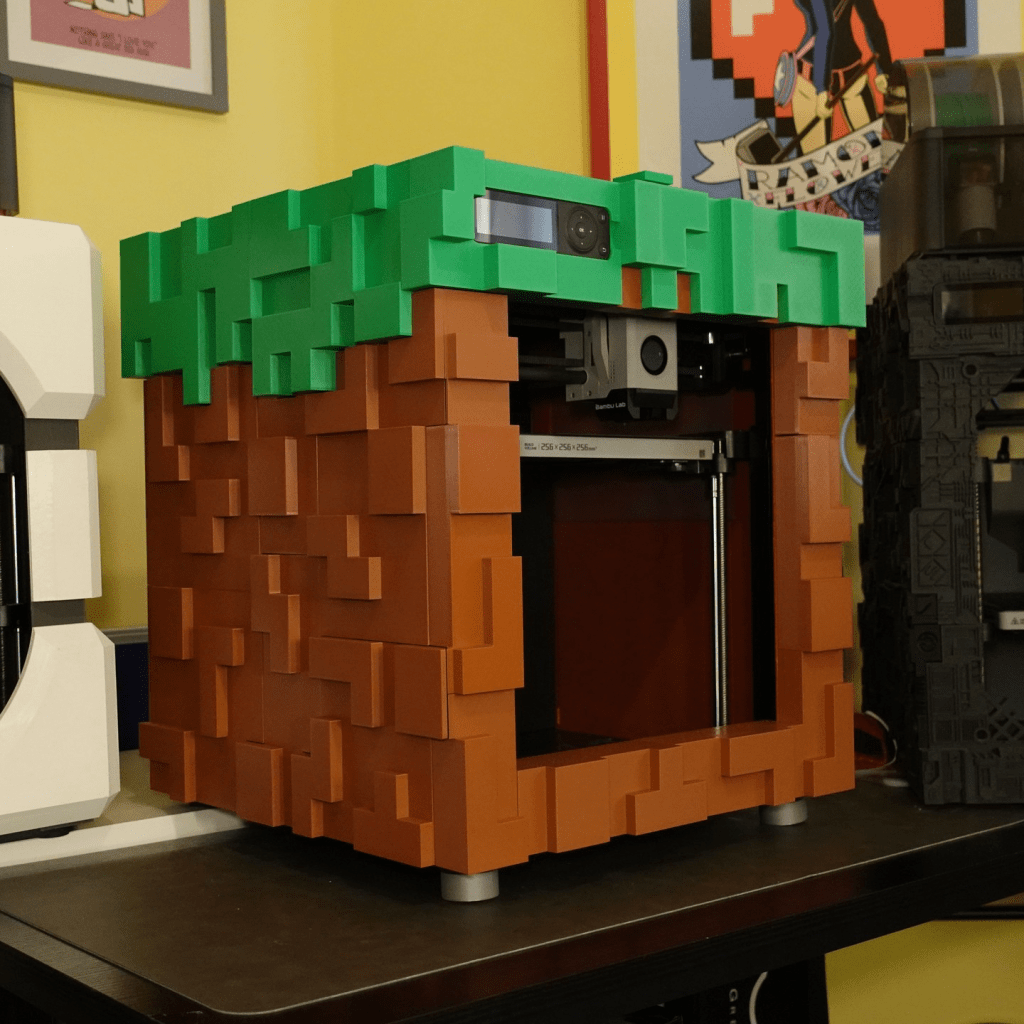
    8. By neil3dprints.

      2024-06-03
    9. I never got to play the original because my computer couldn’t handle it. Also, we didn’t have a lot of extra money for games.

      13-year-old me would be very excited.

      2024-06-03
    10. Never thought I’d learn so much about fire safety from a red-teaming presentation.

      Via Nick Heer.

      2024-06-03
    11. I’ve been thinking about ways to introduce vintage video games to our kids, specifically ones from the NES, SNES, and Sega Genesis eras.

      A few weeks ago, I stumbled upon a new-ish emulation handheld by Anbernic – the RG35XXSSP. It’s got a clamshell form-factor (just like the Gameboy Advance SP), costs around $65 USD, and comes with a 64GB memory card.

      The nice thing is that it can run a variety of custom launchers on top of the built-in emulators. I’m currently using one called MinUI by Shaun Inman (yes, that Shaun Inman), which I really like.

      MinUI simplifies the interface, making it almost like an Analog Pocket, but without the $500 price-tag.

      So, I can load a bunch of legally-obtained ROMs for games like Super Mario Bros, Tetris, etc.1 And, hopefully, the simplified interface and handheld form-factor make it a nice little device to hand over to the kids for playtime.


      1. My (current) shortlist of games: Super Mario Bros., Sonic the Hedgehog, Excitebike, Tetris, Bubble Bobble ↩︎

      2024-06-02
    12. Khan Academy is one of the beta users of the more advanced functions of ChatGPT and it’s inspiring to see what they’re coming up with.

      It’s also nice to see an optimistic but grounded take on how the future could unfold.

      2023-05-02
    13. A minimal digital candlestick.

      2022-01-13
    14. An open source checklist of resources designed to improve your online privacy and security. Check things off to keep track as you go.

      2019-01-17
    15. “The postage stamp-sized chip from Wiliot is able to harvest energy from the ambient radio frequencies around us, such as Wi-Fi, Bluetooth, and cellular signals, and use them to power a Bluetooth-equipped ARM processor that can be connected to a variety of sensors.“

      Via The Verge

      2019-01-15
      technology
    1 2 3 … 6
    Next Page

    Create a website or blog at WordPress.com


    Loading Comments...
     

      • Subscribe Subscribed
        • CM
        • Already have a WordPress.com account? Log in now.
        • CM
        • Subscribe Subscribed
        • Sign up
        • Log in
        • Report this content
        • View site in Reader
        • Manage subscriptions
        • Collapse this bar